Associating HTR with Image Files
This document outlines the process for associating extracted text transcripts (HTR) with Image files within Archipelago to enable the IIIF Content Search API.
In Archipelago, IIIF manifests are dynamic. To make text searchable within viewers like Mirador, the backend must parse the relationship between an “extraction” (text file) and the parent image ADO (or Creative Works Series) via Solr and custom Twig templates.
1. Strawberry Runner Configuration
Before the text can be used in the IIIF manifest, it must be indexed in Solr via a Strawberry Runner.
Configure the “Text” Post-Processor: The Strawberry Runner is the engine that watches your files. You must tell it which ADO (Administrative Digital Object) types are allowed to have their text “Solrized.”
Navigate to: http://localhost:8001/admin/config/archipelago/strawberry_runner_postprocessor/text/edit
Check ADO Types: Look for the “Applicable Bundles” (or ADO types) section. If you are using a custom type like
Manuscript, ensure it is selected.Verify Mimetype: Ensure the processor is set to listen for
text/plain.Field Mapping: Ensure the processor is configured to send the extracted text to a Solr field (usually something like fulltext_tesim or a dedicated OCR/transcript field).
Ensure ADO Types are Configured
Navigate to:
admin/config/archipelago/strawberry_runner_postprocessor/text/edit.Ensure that your specific ADO types (e.g., Manuscript, Poster, Scrapbook) and the mimetype (text/plain) is included in the runner settings.
If your ADO type is missing, the runner will ignore the text files, and they will not be indexed in Solr.
In Solr, the text file will look like:
"tm_X3b_und_sbf_plaintext":["\"State A. & M. College of Texas.\nPRESIDENT'S OFFICE.\nCollege Station, Brazos Co.,                                        18 7\n    \nIf the legislature will give us the appropriations to keep up this College and other Colleges, and equip this College as it should be, I have no doubt that two would be our standing number. You must be on the alert, when we are enlarged. All the Faculty are your friends now, and that we will be a very decided favor in your favor.\n\nGen. Lewis has arrived, and is on the ground. He is very affable, and promises to be a very agreeable associate.\n\nThat Circulation business is a good thing on paper but is rather wishcome in practice. The people are so slow to call a body out, that there is\""],
      "tm_X3b_und_title_2":["Letter from Thomas S. Sutton to Colonel J.R. Cole"],
      "_root_":"3doz0r-default_solr_index-strawberryfield_flavor_datasource/33:1:en:93113851-f4b7-4105-88cd-7b0bab3b5b90:text",
Upload Your ADO
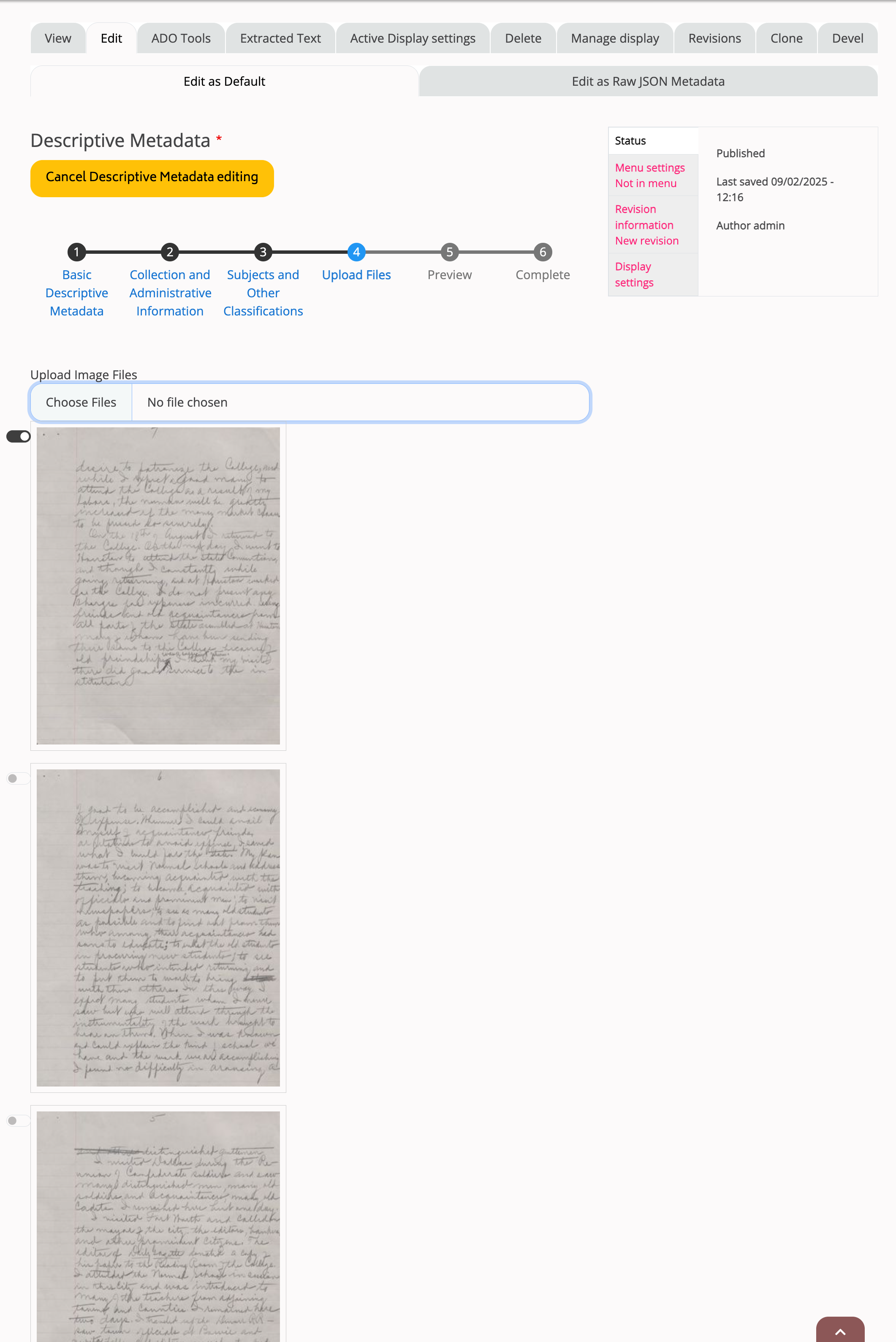
When you upload your ADO, add your images.
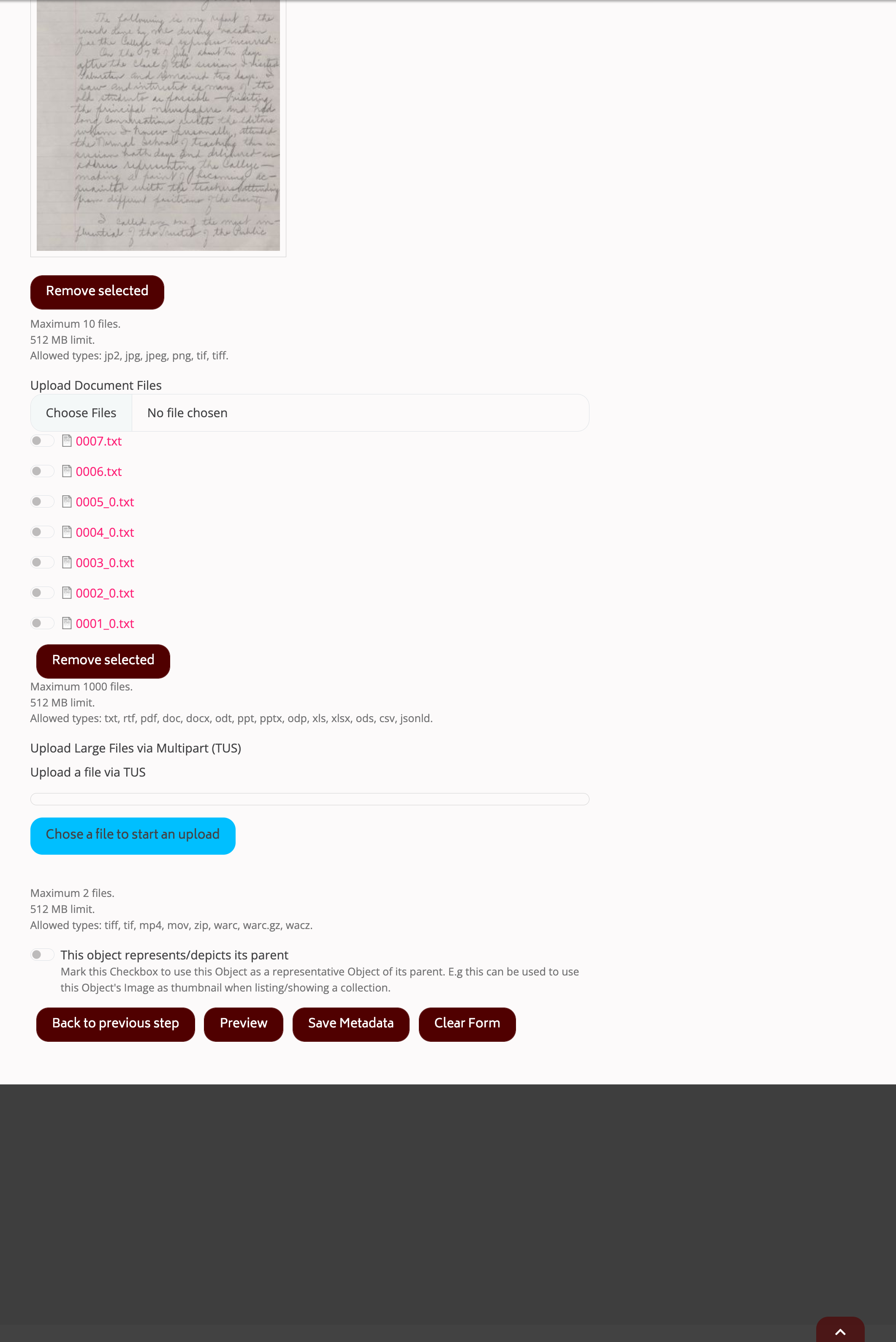
And add associated text files containing the HTR:
Triggering the Indexing
If you have existing items that need their text files indexed:
Go to the Search and Replace tool: /search-and-replace.
Select the target items.
Choose the action: “Trigger Strawberry Runners Process / Reprocess…”.
Force the Text post-processor.
You can monitor the progress in the Queue UI or check the “Reports” admin page for log entries.
2. Twig Template Implementation
To expose the text as a supplementing annotation in your IIIF Manifest (v3), you need to modify the Images section of your Twig template.
Association Logic
The logic typically checks if a Text file and an Image file were uploaded under the same key/sequence or if the ADO contains a single image.
Mark’s Initial Twig Snippet
Replace the matching Images section of your manifest template with the following logic:
{#- starts Pure Text annotation and direct Image annotations -#}
{% set texts = [] %}
{%- for text_uuid, text_file in data["as:text"] %}
      {# only generate an annotation if text and image have the same sequence OR
   there is exactly a single Image #}
  {% if (text_file.sequence == page.sequence or data["as:image"]|length == 1) and text_file["dr:mimetype"] == "text\/plain" %}
    {% set texts = texts|merge([{'dr:uuid': text_file['dr:uuid'], 'name': text_file['name']}]) %}
  {% endif %}
{%- endfor %}

{% if texts|length > 0 %}
,
"annotations": [
    {
    "id": "{{ nodeurl }}/iiif/subtitles/s{{ itemCount }}",
    "type": "AnnotationPage",
    "items": [
    {%- for text_file in texts %}
        {
            "id": "{{ nodeurl }}/iiif/text/p{{ itemCount }}/{{ text_file['dr:uuid'] }}",
            "type": "Annotation",
            "motivation": "supplementing",
            "body": {
            "id": "{{ Webserverurl }}do/{{ node.uuid.value }}/file/{{ text_file['dr:uuid'] }}/download/{{ text_file["name"] }}",
            "type": "Text",
            "format": "text/plain",
            "label": { "en": ["{{ text_file.name }}"] },
            "language": "en"
            },
            "target": "{{ nodeurl }}/iiif/canvas/p{{ itemCount }}#xywh=0,0,{{width}},{{height}}"
        }{{ not loop.last ? ',' : '' }}
    {% endfor -%}
    ]
    }
]
{% endif %}
{#- ends Pure text annotation -#}
3. Verification and Debugging
Check Solr Directly
To confirm the text is correctly indexed, query your Solr core for the ADO’s UUID. Look for the following field:
tm_X3b_und_sbf_plaintext: This should contain the raw extracted text.
Archipelago UI Checks
Extracted Text Tab: Check the “Extracted Text” tab on the ADO display page. This tab is a View and can be customized to show text/plain extractions.
Search API Index: Check the status of your index at /admin/config/search/search-api/index/default_solr_index to ensure there are no pending items or errors.
Manifest Preview
Always use the “Preview” function on your Twig template. Test it against a target ADO that contains both an image and a text file to ensure the output is valid JSON and the annotations block appears correctly within the Canvas.
> Note: Archipelago’s dynamic manifests allow for complex grouping. If you are using multi-page documents (CWS), ensure your sequence mapping in the Twig template correctly aligns the as:text files with the corresponding as:image canvases.
Would you like me to help you refine the Twig logic for a specific metadata schema, or perhaps assist in drafting the Solr configuration steps?