DSPACE: Extending Embargos in DSpace
Background — how OAKTrust embargo works (so you understand what you’re changing)
In modern OAKTrust versions, embargoes are implemented via ResourcePolicy objects (access-policies) attached to an Item or to individual Bitstreams.
The “embargo end date” is stored internally as the start date on a policy granting access after embargo. In other words: before that date, access is restricted; at/after that date, the policy becomes active. (Texas Digital Library)
Thus, to extend an embargo you don’t touch metadata; you modify the ResourcePolicy’s start-date.
Manual “embargo-lifter” tools (used in very old OAKTrust versions) are not required in modern versions — the policy system handles the embargo expiry.
Step-by-step: Extending an existing embargo in OAKTrust 10
Login as an administrator (or a user with appropriate rights).

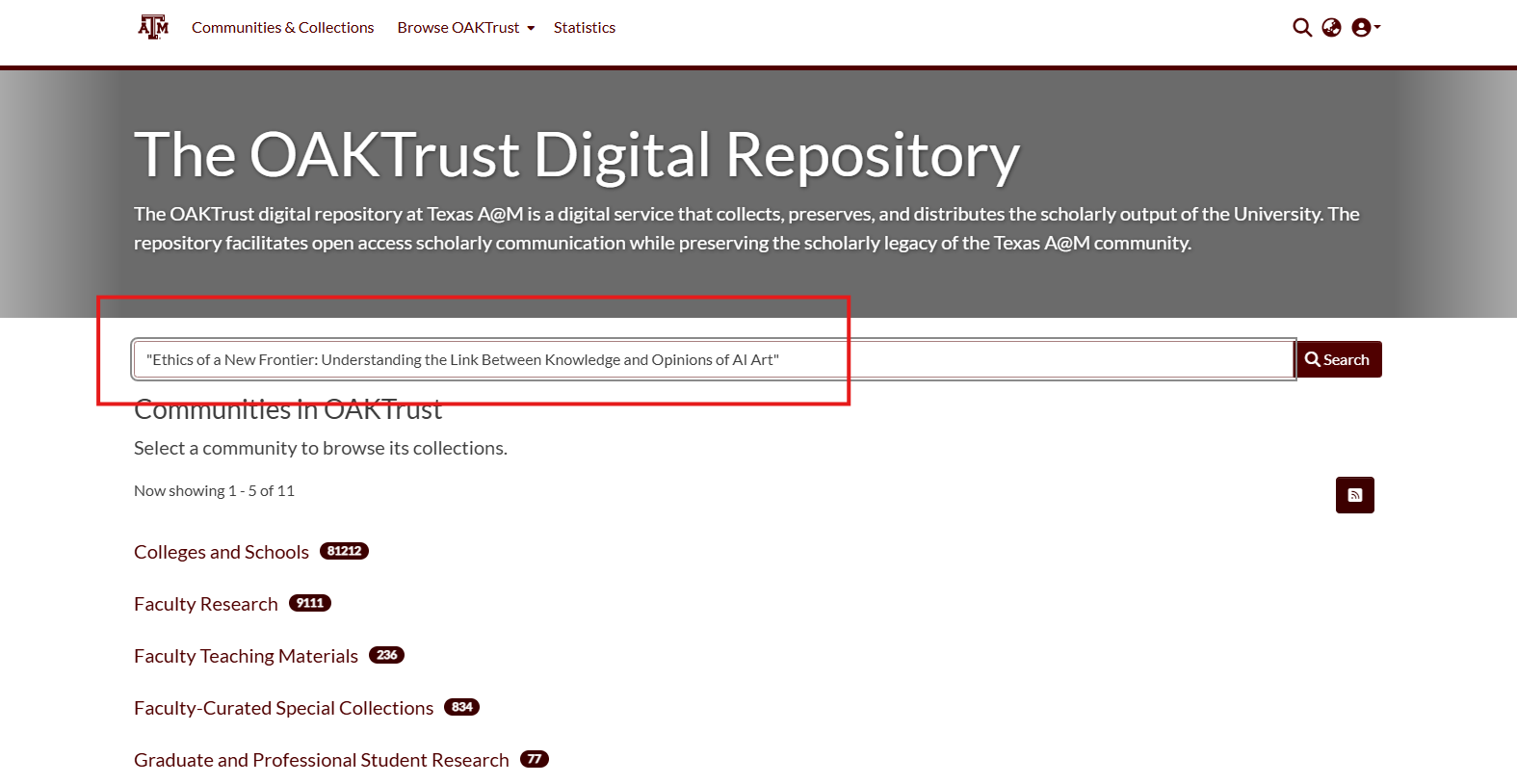
Locate the item whose embargo you want to extend (via its handle/identifier). Make sure to put the item in double quotes when searching for exact match.
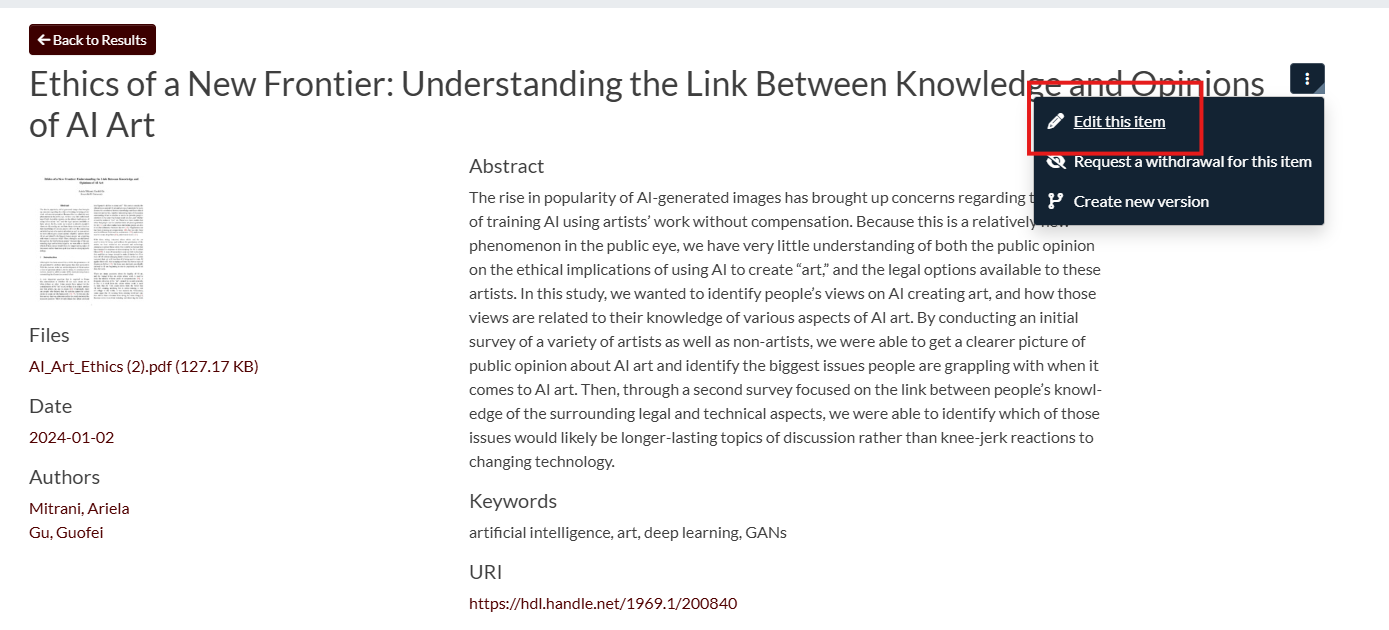
Open the item for editing
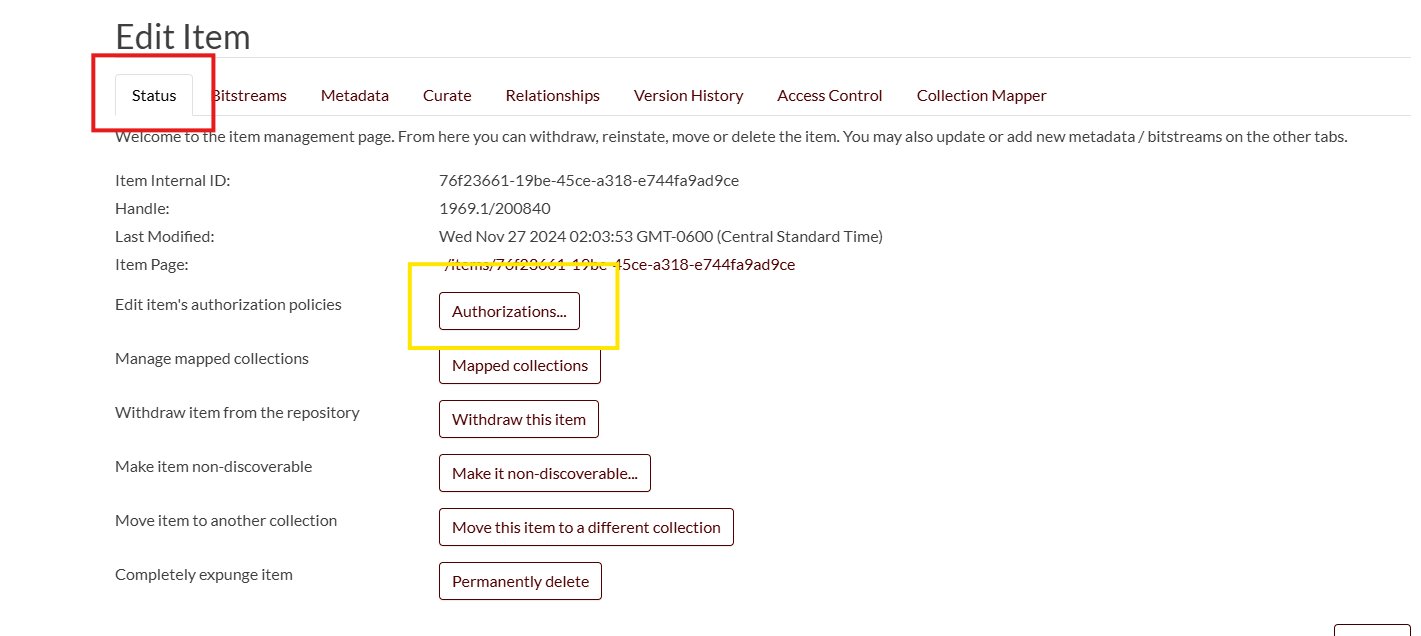
Go to the “Status -> Authorizations” section - From status tab, click on Authorizations button.
- Identify the relevant policy
If the embargo is at the item level — edit the Item’s policy.
If the embargo is at the bitstream level (i.e. specific files) — find the policy for the bitstream(s) you want to change.
Edit bitstream policies by clicking the “Edit Bitstreams” button, then selecting the ORIGINAL, TEXT, and THUMBNAIL bitstreams one at a time to edit their policies.
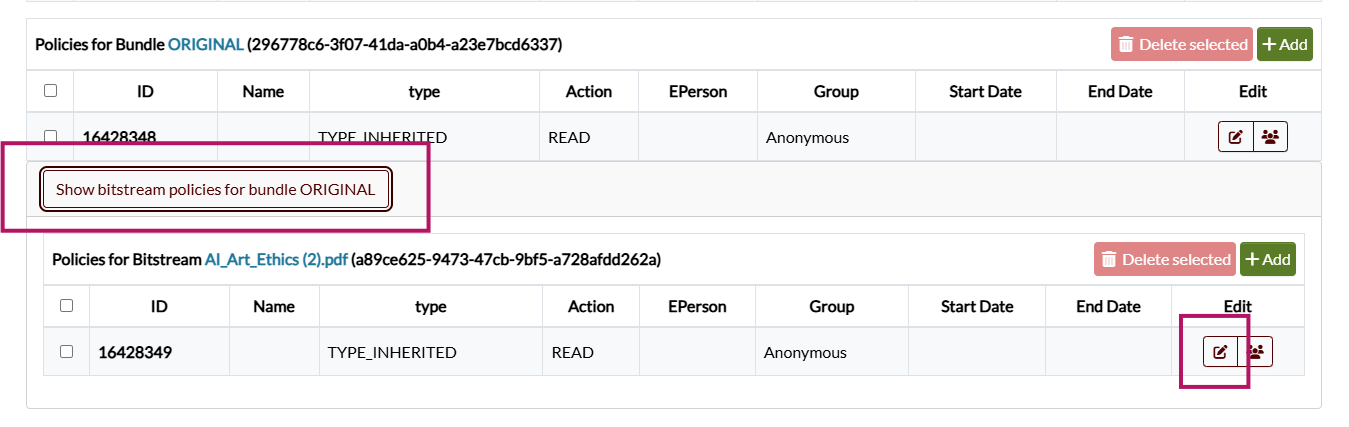
Edit the “Start date” of the policy — set it to the new embargo-lift date (i.e. the date when you now want access to begin).
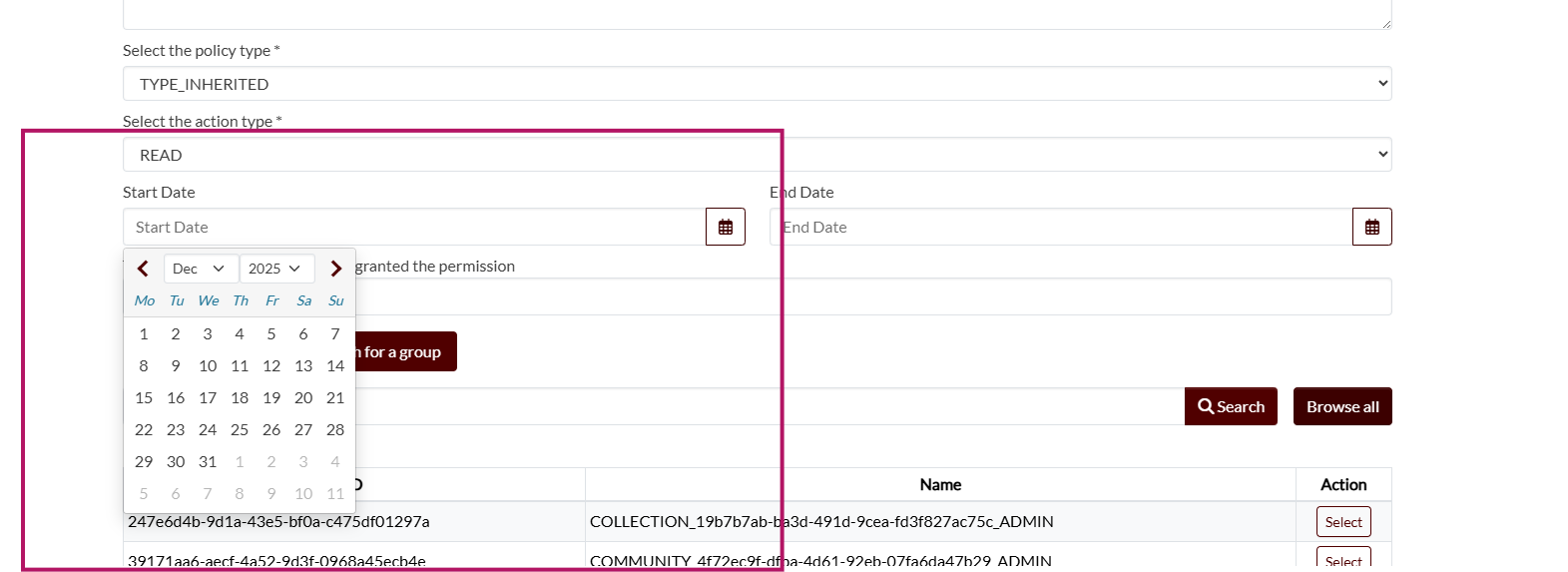
Save/Apply changes. The new embargo date should take effect immediately. Because your current session may still have admin privileges, you might need to log out and log in as a non-admin to verify that the embargo is actually enforced until the new date. Or you can just open the link in a private/incognito browser window.
Known caveats & troubleshooting (things to watch out for)
Some users report issues when trying to reset embargo date — e.g. editing the start date appears successful in the UI, but the change does not persist. This could be a UI bug or a permissions issue.
For bitstream-level embargo: when switching from embargo to “open access”, ensure you remove the start-date, since “openaccess” policies shouldn’t have a start date per policy in some UI implementations.
Because embargo date is stored in policies (not metadata), the embargo date will not automatically appear in metadata exports or DC metadata for public users. If you want a visible record, your repository may need custom metadata or UI changes.